


Red Rover K12
4.61.16K Reviews
App Specs
- Version
- 7.0.2
- Updated On
- License
- Free
- Downloads
- 100,000+
- Developer
- Red Rover Technologies LLC
- Categories
- Education
- Platform
- Android
Screenshots


 Analysis by AppCompare
When I first opened Red Rover K12, I understood its purpose quickly: it is an education app for K–12 employees and substitute teachers who need to register and fill absences. That narrow focus is its biggest strength. It is not trying to replace a school portal, organize lesson plans, or become a general workplace chat tool. Instead, it puts one recurring staffing task in a mobile format that is easier to reach when I am away from a desk.
The app is free, rated for Everyone, and developed by Red Rover Technologies LLC. It is available for devices running Android 7.0 or later, and its current version is 7.0.2. Those details make it approachable for schools and individual staff members using a wide range of phones. I also found the reception encouraging: it holds a 4.6 average from around 7.9 thousand ratings, with more than 100 thousand installs. Those figures do not replace personal testing, but they suggest that the basic workflow is useful to a substantial group of education workers.
Getting from installation to a useful absence request
I find the first absence request is easiest to handle when I treat it as a real school workflow, not a form to experiment with: I check my account and role first, then read each requested detail before submitting. That preparation helps distinguish a routine entry from an account or policy question that needs the school’s help. Next, I look at what the app is designed to support for employees and substitutes.
What the app is really for
The most important thing to understand before installing it is that Red Rover K12 is part of an absence-management process, not a standalone substitute marketplace that works independently of a school or district. The app makes sense when an organization uses the Red Rover system and has given its employees or substitutes a way to participate. If your school does not use that system, installing the app alone is unlikely to solve your scheduling problem.
For an employee, the central job is usually reporting an absence and entering the information required by the organization. For a substitute, the useful side is checking available work and taking the appropriate action within the system. The exact screens and choices can depend on how a district has configured its account, so I would approach the first launch with the login or invitation details supplied by the school rather than expecting the app to create a complete profile from scratch.
This is a better fit for people who regularly need to act while commuting, at home before school, or during a busy morning. A browser-based portal can do similar work, but a dedicated app reduces the temptation to search through bookmarks or remember which school website handles absences. The real benefit is a shorter path from “I cannot work today” to “the organization has received my request.”
What to prepare before the first launch
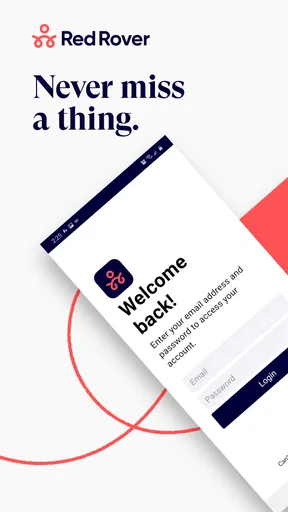
Before opening the app, I would have three things ready: the email address or username connected to the school account, the password or sign-in instructions, and a clear idea of the date or dates involved. This small preparation matters because absence reporting is not the kind of task where guessing is helpful. A rushed entry can create unnecessary follow-up for office staff, especially when a school day is already underway.
Worth Reading Before You Choose

EA SPORTS FC Mobile 26 Is a Bigger Football Game, but It Takes Time

Flipboard Shows What News Apps Must Do Beyond the Feed

Switching to Android Auto Means Rethinking Your Driving Routine

Google Calendar Makes a Crowded Week Easier to Manage

Ludo King Makes the Most of the Minutes Between Plans

Baby Panda World Brings Quick Play to Modern Phones, but Its Game Library Feels Busy
I would also confirm whether I am entering the app as a K–12 employee or as a substitute. Those roles are related but not identical. An employee may need to report an absence, while a substitute may be looking for assignments or responding to work made available through the system. Choosing the wrong path during setup can make the app feel confusing even when the account itself is fine.
Because the app is free, there is no purchase decision blocking the first attempt. That is useful for a district employee who simply wants to test the workflow. Still, “free” does not mean that every school-specific function is automatically available. Access is tied to the organization’s use of the platform and the account permissions attached to the user.
The first setup experience
My advice is to complete setup when you are not already under pressure to report an absence. Sign in, look at the main navigation, and identify where an employee begins an absence entry or where a substitute reviews work. Doing this in advance turns an urgent morning task into a familiar sequence. It also gives you time to notice whether your account information is correct before you need it.
The first meaningful success should be simple: reach the correct absence or assignment area and understand what the app expects from you. I would not begin by tapping through every available option. Instead, I would learn the route that matches my role, then return to the account or profile area to check the details that could affect a submission, such as the school or position associated with the account.
One practical habit is to stop before the final confirmation and reread the date, duration, and any notes. Mobile interfaces are convenient, but their compact layout can make a selected day easy to overlook. If the app presents a confirmation screen, treat it as a review step rather than a formality. That pause is especially valuable when reporting an absence late in the evening for the following school day.
Completing a first absence action
For a K–12 employee, the clearest test is to begin an absence entry only when there is a legitimate need or when the organization has explained how practice entries should be handled. Select the relevant date, provide the required information, and check the summary before submitting. I would avoid creating a test absence in a live account unless the school explicitly permits it, because a practice record could be interpreted as a real staffing request.
After submission, the important question is not simply whether the button changed state. I would look for a visible indication that the entry was accepted or recorded, then check the relevant history or status area if the app makes that available in the account. This is a useful distinction: pressing a button is not the same as confirming that the request reached the organization’s workflow.
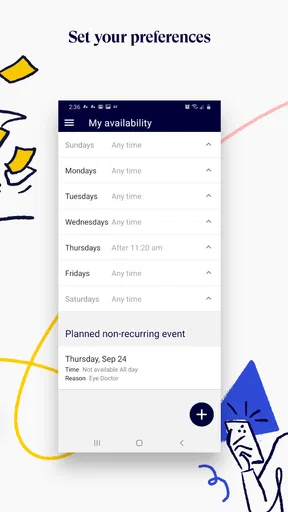
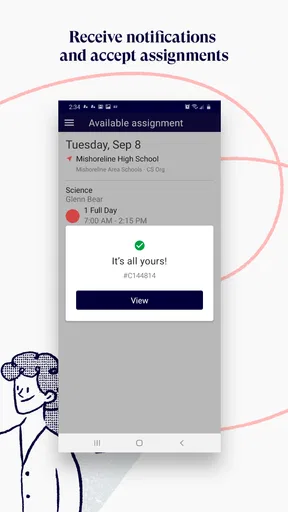
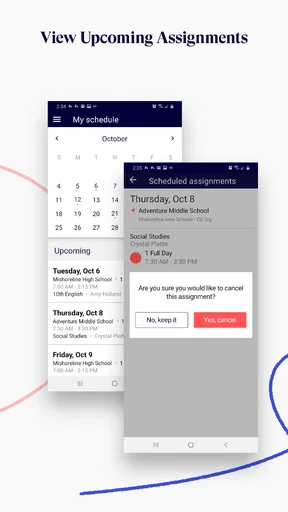
For a substitute, the first successful action is different. It is finding an assignment that matches the person’s availability and understanding what action the app expects next. I would read the assignment details carefully before committing, particularly if the school, date, or role is not immediately obvious. The app can make the response step convenient, but convenience should not replace checking whether the assignment is actually workable.
A realistic example is a teacher who wakes up ill before the school office opens. Rather than searching for a district webpage from a phone browser, the teacher opens Red Rover K12, signs in, selects the absence workflow, checks the date, adds the required information, and reviews the submission. The value is not dramatic; it is the reduction of small delays at exactly the time when the user has the least energy for administrative work.
Where first-time users can get confused
The most common misunderstanding is expecting the app to know everything about a school without a connected account. Red Rover K12 is a tool inside an organization’s staffing process. If the sign-in fails, the problem may be the account, the school’s setup, or the selected user role rather than the phone itself. I would first verify the login details and contact the school’s designated support person before repeatedly reinstalling the app.
Another point of confusion is the difference between reporting an absence and securing coverage. An employee’s submission starts an administrative process; it does not necessarily mean that a substitute has already accepted the work. A substitute’s interest in an assignment likewise does not automatically mean that every approval or confirmation step is complete. I recommend checking the status shown in the app and following any instructions from the school instead of assuming that the first screen change is the final result.
Notifications can also create uncertainty. If a user expects every update to appear immediately, a missing alert may feel like a failed submission. I would treat the in-app record as the more useful place to verify an action, while remembering that notification behavior can depend on the device and the organization’s configuration. The safe habit is to confirm important information inside the account rather than relying on a banner alone.
Substitutes may face a different kind of friction: not every available assignment will suit their schedule, subject experience, location, or comfort level. A compact mobile listing can encourage quick decisions, so I would open the full details before responding. If the app offers a fast way to act, that is helpful, but it also makes careful reading more important. The trade-off is speed versus the risk of accepting something without checking the context.
How it compares with ordinary alternatives
The usual alternative is a web portal, email, phone call, or a school’s general employee system. A phone call can be reassuring when an absence is complicated, but it depends on office availability and can take longer during the morning rush. Email leaves a written trail, yet it may require someone to read and manually transfer the information into a staffing system. A browser portal may offer similar access, but it can be less convenient on a small screen and easier to forget when the address is buried among other school links.
Red Rover K12 is strongest when the organization already relies on its workflow and the user needs a focused mobile entry point. It is less compelling for a school that handles every absence through a direct phone line or a different employee platform. It is also not the right choice for someone looking for a broad classroom-management app, a lesson-planning tool, or a general calendar. The app’s value comes from doing one administrative area with less friction, not from covering every part of school work.
Compared with a generic scheduling app, it has a more relevant purpose for K–12 staffing because the account and assignment process are connected to the school’s system. A generic calendar can remind me that I am unavailable, but it cannot replace the formal action required by an absence workflow. On the other hand, a generic calendar may still be useful alongside this app for personal planning, because Red Rover K12 should not be treated as a complete view of every private appointment or commitment.
Small habits that make the workflow safer
My first tip is to learn the app before an emergency. Sign in during a calm moment, identify the absence route, and make sure you know how to return to the main screen. This is more useful than memorizing every menu because the critical benefit is speed under pressure. If the account needs help, finding that out early gives the school time to correct it.
My second tip is to separate “submitted” from “covered.” When reporting an absence, verify that the request is recorded, but do not assume that a replacement has accepted it unless the app clearly shows that stage or the school confirms it. This distinction prevents a dangerous gap between an employee’s expectation and the office’s actual staffing status.
My third tip is for substitutes who manage several possible assignments. Review the details of each opportunity before responding and keep personal availability in mind rather than treating every listing as interchangeable. A fast mobile response is useful only when it leads to a commitment the substitute can honor. The app can streamline the decision, but it cannot make that decision responsibly on the user’s behalf.
My fourth tip is to use the app as the official action point and another calendar as a personal reminder if needed. That combination avoids a common mistake: writing an absence in a private calendar and forgetting to report it through the school’s required system. The calendar can help with memory; Red Rover K12 is the place intended for the organization-facing step.
Who will appreciate it most
I think this app is most useful for teachers, aides, and other K–12 employees whose schools have adopted Red Rover and who want a direct way to handle absence-related tasks from a phone. It should also appeal to substitute teachers who prefer checking work and responding without depending entirely on a desktop browser. People who work across different school days may particularly value having the relevant workflow in one dedicated place rather than relying on scattered emails.
It is less suitable for a user whose school does not use Red Rover, someone who needs a full staff-management suite, or anyone expecting the app to make independent staffing decisions. It may also feel unnecessary for an employee who reports absences only by speaking with a small office team and does not need mobile access. In those cases, the organization’s established method may be clearer and more dependable.
The Everyone age rating is unsurprising because the app is an administrative education tool rather than entertainment or mature content. Still, the intended audience is clearly school employees and substitutes, not children using it for learning. Families looking for a student study app would be better served by a product designed around lessons, practice, or school communication.
Longer-term usefulness and limitations
After the first successful action, the app’s usefulness depends on how often the user needs the workflow. Someone who reports an absence only occasionally may mainly value not having to remember a website. A substitute who checks opportunities more often may gain more from keeping the app ready for quick review. In both cases, the benefit grows when the organization’s process is consistent and the user knows which status or confirmation to look for.
The main limitation is that a focused staffing app cannot remove every human or organizational dependency. Account problems, unclear school policies, unusual leave situations, and urgent questions may still require contact with an administrator. I would not use the app as a reason to avoid speaking with the office when an absence involves special circumstances. Its best role is handling the standard path cleanly, while people handle exceptions.
There is also a learning trade-off. The app can be faster than a browser once the user understands the workflow, but the first setup may feel less obvious if the school has not explained the difference between employee and substitute access. A short orientation from the organization would make the experience smoother. Without that context, users may mistake a permission or account issue for a design flaw.
Red Rover Technologies LLC has kept the product’s identity focused on K–12 absence and substitute coordination. The current 7.0.2 release gives users a defined mobile tool rather than an oversized platform full of unrelated features. I appreciate that focus, although it means the app should be judged by the quality of its core administrative path, not by whether it provides tools outside that purpose.
My recommendation after using it
I would recommend Red Rover K12 to a school employee or substitute whose organization already uses Red Rover and wants a practical mobile route into that system. The free price removes an obvious barrier, and the app’s education-specific purpose is clearer than trying to force a general calendar or email app to manage staffing actions. Its strongest moment is a rushed but ordinary one: opening the phone, entering the correct absence, reviewing it, and knowing what to do next.
I would not recommend installing it as a speculative solution before checking whether the school supports it. Nor would I rely on it alone for unusual leave questions, uncertain account access, or confirmation that coverage is complete. In those situations, the school office remains important. The app is a useful channel, not a replacement for the organization’s rules or human support.
Overall, I found Red Rover K12 most convincing when I treated it as a focused tool with a specific job. Prepare the account before you need it, choose the correct role, check dates and details carefully, and verify the status after submitting. If that matches your school’s process, this is the kind of app that earns its place on your phone by saving a few stressful minutes when they matter most.
Pros
- Simple interface makes classroom content easy for younger students to navigate.
- Supports school-managed learning workflows and teacher-assigned activities.
- Useful for practicing skills at home or during independent study.
- Can help families stay connected with a child’s K–12 learning tasks.
- Designed with an education-focused experience rather than general entertainment.
Cons
- Available features may depend on the student’s school or district setup.
- Some content can feel limited when no assignments are currently available.
- Requires reliable internet access for the smoothest experience.
- Parents may need school-provided login details to get started.
- Older devices may experience slower loading or compatibility limitations.
FAQs for Red Rover K12
What is Red Rover K12 and who is it designed for?
Red Rover K12 is a school-focused communication and engagement platform designed to help districts, schools, staff, students, and families stay connected. Depending on the school’s setup, it may provide access to announcements, calendars, messages, alerts, forms, resources, and other community information. The exact features available can vary by district, so users generally need an invitation, school credentials, or an organization connected to the platform.
Do I need an account or school invitation to use Red Rover K12?
In most cases, Red Rover K12 is intended for members of participating schools or districts rather than unrestricted public use. You may need to create an account with an email address, verify your identity, or accept an invitation from your school. If your organization does not appear during setup, check that you are using the correct email or contact the school administrator, since access and login requirements are controlled by each participating institution.
What features can parents and guardians expect in Red Rover K12?
The available tools depend on how a school configures Red Rover K12, but parents and guardians may use the app to receive school announcements, view important dates, read messages, access forms or documents, and stay informed about activities. Some organizations may also enable attendance-related communication, emergency notifications, or direct contact options. Because features differ between schools, the app may look more limited for one user than for another.
Does Red Rover K12 send notifications, and can I control them?
Red Rover K12 may send push notifications for announcements, messages, reminders, or urgent school communications. These alerts can be useful when information is time-sensitive, but frequent notifications may become distracting if they are not adjusted. After installation, review both the app’s notification settings and your phone’s system permissions. Keep essential alerts enabled, especially if your school uses the platform for emergency or schedule-related updates.
Is Red Rover K12 free, and is it safe for families and students?
The application is generally provided to families and school communities without a separate consumer subscription, although access is arranged through participating organizations. As with any education platform, users should review the privacy policy and understand what information their school shares through the service. Download the app only from an official store, use a strong password, avoid sharing login details, and contact your school if you notice suspicious activity or unexpected account requests.


